Features  Common Features
Minimum System Requirements for Win*Star 7.0
| System |
PC running Windows 8, 10, 11
Includes 32 and 64 bit versions of Windows |
| Available Hard-Drive space |
400 Mb free. |
| Other Hardware |
Printer |
| Download file size |
111 Mb |
Database & Research
In all Win*Star Versions

Win*Star's database is the storehouse for all of your charts. Charts can be sorted and stored by category and easily displayed and accessed via numerous filters and sorts. Notes can be appended to charts and searches created to scan the database finding and grouping charts by selected similarities.
Database: Chart Storage
These screen captures from database displays shows a chart file displayed in the database. This file can contain an unlimited number of charts and charts can be organized and classified by categories you devise, or by their astrological factors. The database quickly becomes your greatest ally when managing a growing chart collection.
Chart Database
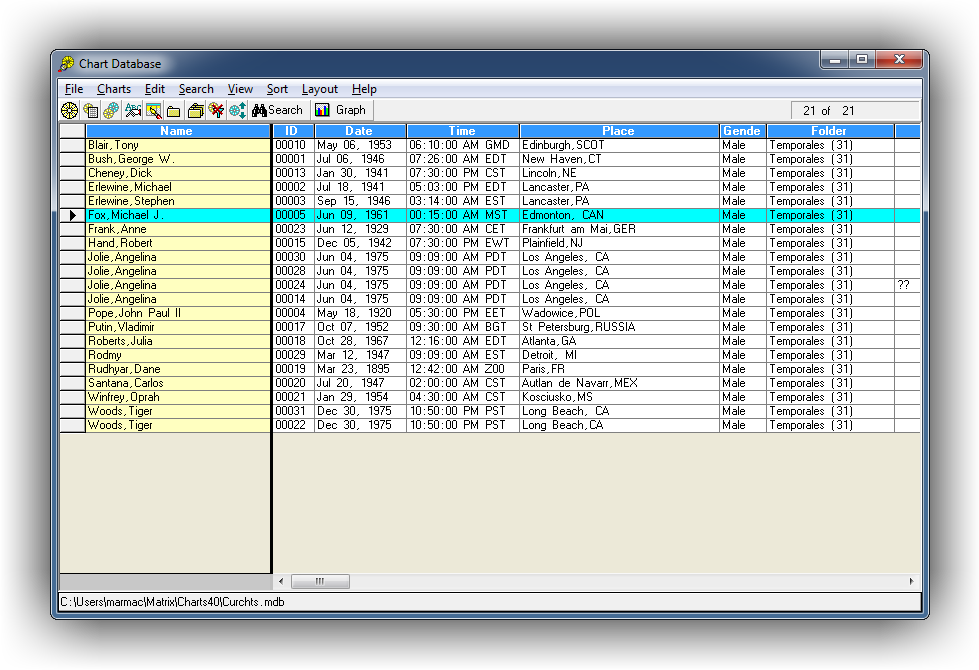 Data from each chart is displays in a tabular format. All charts in the selected chart file are displayed.
Chart Database Folders
 Charts can be flagged by category, keyword, and attribututes you can apply for easy sorting and filtering.
Win*Search
Win*Search provides the ability to search and examine the records (charts) in the Win*Star 7.0 chart database files. With it you can create database files and copy charts between files. Extensive astrological search parameters can be set and applied to any size database file, making research simple and swift. Charts can be displayed in both graphs and chart wheels.
Win*Search 1
 Use this simple, clickable menu to set the search criteria used when exploring the highlighted chart file.
Win*Search 2
 Colorful graphs will display search results, providing an easy method to display trends within the chart file.
[ TOP ]
Win*Search Options Screen
The Win*Search Options screen shows the wide range of research options available. A key element is the AND/OR capability of the program. AND means that you're searching only for charts that have two or more factors. For example, the screen shows Mars Trine Mercury with a 7 degree orb. If you click the ALL button and select something else – Jupiter in the 7th and the Ascendant in Fire, for example, – only charts that meet all three will be shown. But, if you choose the ANY option, for example Mars Trine Mercury OR Jupiter in the 7th, any chart with either of these will appear in your research results.
Options Screen
[ TOP ]
Astro*Query
The Search/Filter by Astro*Query button brings up the list of Search Conditions. The screen-shot example returns the geo long of the ruler for the sign of the given planet or position. Edit or change any of these before running the search.
Astro*Query Screen

[ TOP ]
Search Results
These are the results of your research. They are the charts that meet the criteria you've selected. This search was for charts with the Ascendant AND Moon in Fire. Win*Star enables you to create as many different databases as you want. You can search one in its entirety or select a specific category within one database. Our example also shows the "Notes" column that appears in all Win*Star databases. You can type in any information that you choose here. Selecting the "Chartdata" button will provide details about the selected chart. Selecting "QWheel" brings up the selected chart in Win*Star's QWheel window. The "Graph" button brings up the powerful set of graphs included in Win*Search.
Search Results Screen

[ TOP ]
Graphs from Win*Search
There are seventeen different types of graphs in Win*Search which can be used to display search results for any planet by sign, house, aspect, element, decante, degree, polarity, 90-degree dial, and more. Graphs can be viewed in Pie, Bar, and 3D bar styles. Pull-down options allow you to Print, Copy, or Save any graph or send it to Windows' Clipboard to be pasted into any other document.
Win*Search

[ TOP ]
Next Common Feature: User Preferences >
